Connect Logling to ChatGPT
You can connect your Logling account to ChatGPT with Logling’s private Model Context Protocol (MCP) app. Once connected, ChatGPT can inspect the available Logling schemas, find and read your entries, and create new entries from a conversation.
For connection details that apply to other compatible MCP clients, see Use Logling with an MCP client.
Before you start
You need a Logling account and access to ChatGPT Apps or Plugins. In ChatGPT, look for Apps or Plugins in the sidebar or account settings. App availability depends on your ChatGPT plan, region, workspace role, selected model, and the ChatGPT surface you are using.
For a managed ChatGPT workspace, an Admin or Owner may need to enable Apps before you can create or use a private app. If you do not see Apps, Logling cannot enable that control for your account.
Add the Logling app
- In ChatGPT, open Apps or Plugins and create a private app or plugin. The exact labels can vary as ChatGPT updates its interface.
- Name it Logling. You can use “Create and find private Logling entries from ChatGPT” as its description.
- Under Connection, choose Server URL, not Tunnel. Under Authentication, choose OAuth.
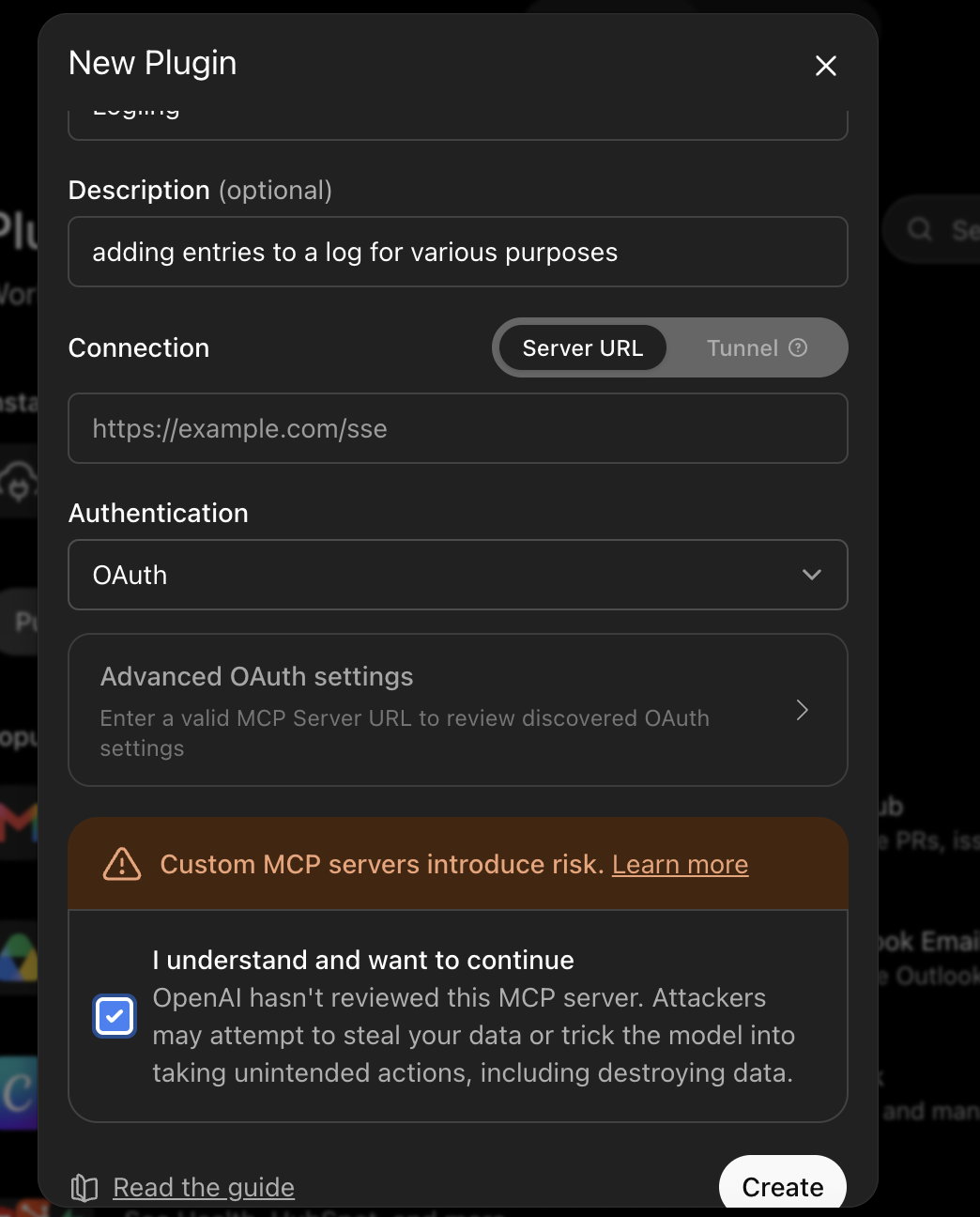
Enter the following server URL:
https://mcp.logling.com/mcp
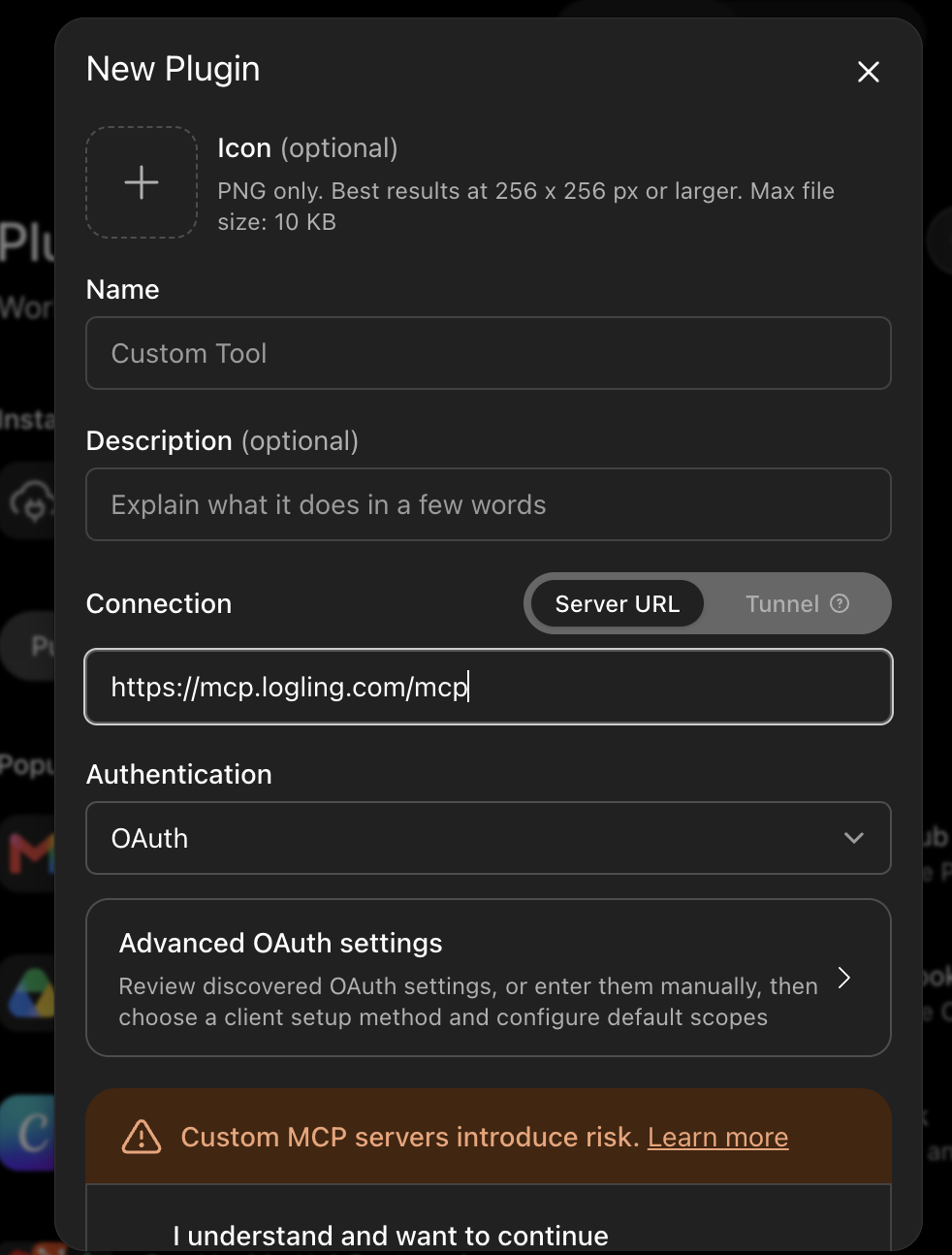
- If ChatGPT discovers OAuth settings automatically, continue to connect your account. Otherwise, enter the settings below.
| Setting | Value |
|---|---|
| Registration method | User-Defined OAuth Client |
| Callback URL | https://chatgpt.com/connector_platform_oauth_redirect |
| OAuth client ID | https://chatgpt.com/oauth/client.json |
| OAuth client secret | Leave empty |
| Token endpoint auth method | none |
| Default scopes | entries:read, entries:write, schemas:read |
| Base scopes | Leave empty |
| Authorization URL | https://auth.logling.com/v1/oauth/authorize |
| Token URL | https://auth.logling.com/v1/oauth/token |
| Authorization server base | https://auth.logling.com |
| Resource | https://mcp.logling.com/mcp |
| Registration URL | Leave empty |
| OpenID support | Disabled |
| OIDC configuration URL and userinfo endpoint | Leave empty |
Do not enter a client secret, add offline_access, choose dynamic client registration, or save ChatGPT’s example placeholder values for a registration or OIDC URL.
Connect your account
- Save the private app and select Connect.
- Sign in to Logling in the authorization window. Enter your password only on a Logling page, never in ChatGPT’s app settings.
- Review and approve the requested access. ChatGPT returns to the conversation when the connection is complete.
- Ask ChatGPT which Logling schemas are available, or ask it to find or create an entry.
ChatGPT must use a returned versioned schema before creating structured data. If the information required by a schema is missing, it should ask you for it instead of guessing.
What ChatGPT can do
The Logling app has a limited set of permissions:
- List the entry schemas that are available to you and retrieve a schema’s fields.
- Find entries, retrieve a matching entry, find tags, and see which entry types you have logged.
- Create a new, schema-valid entry with tags and structured data.
It cannot update or delete Logling entries. Each entry created through this app records ChatGPT as its source, separately from the entry data you can edit.
Manage access
To stop using the app, disconnect it in ChatGPT. To immediately invalidate its Logling authorization, sign in to Logling, open Settings, then remove ChatGPT from Connected applications.
If the app cannot connect, confirm the server URL, client ID, callback URL, resource, and the three default scopes exactly match this page. Reconnect the app after correcting a setting. Do not work around an authorization error by selecting weaker authentication or broader permissions.
Get what you needed?